1. Finding & Buying a Course
Every course and digital product has its own public sales page — no account needed to view it. It shows what's included, the price, and an Enroll now button that scrolls straight to checkout.
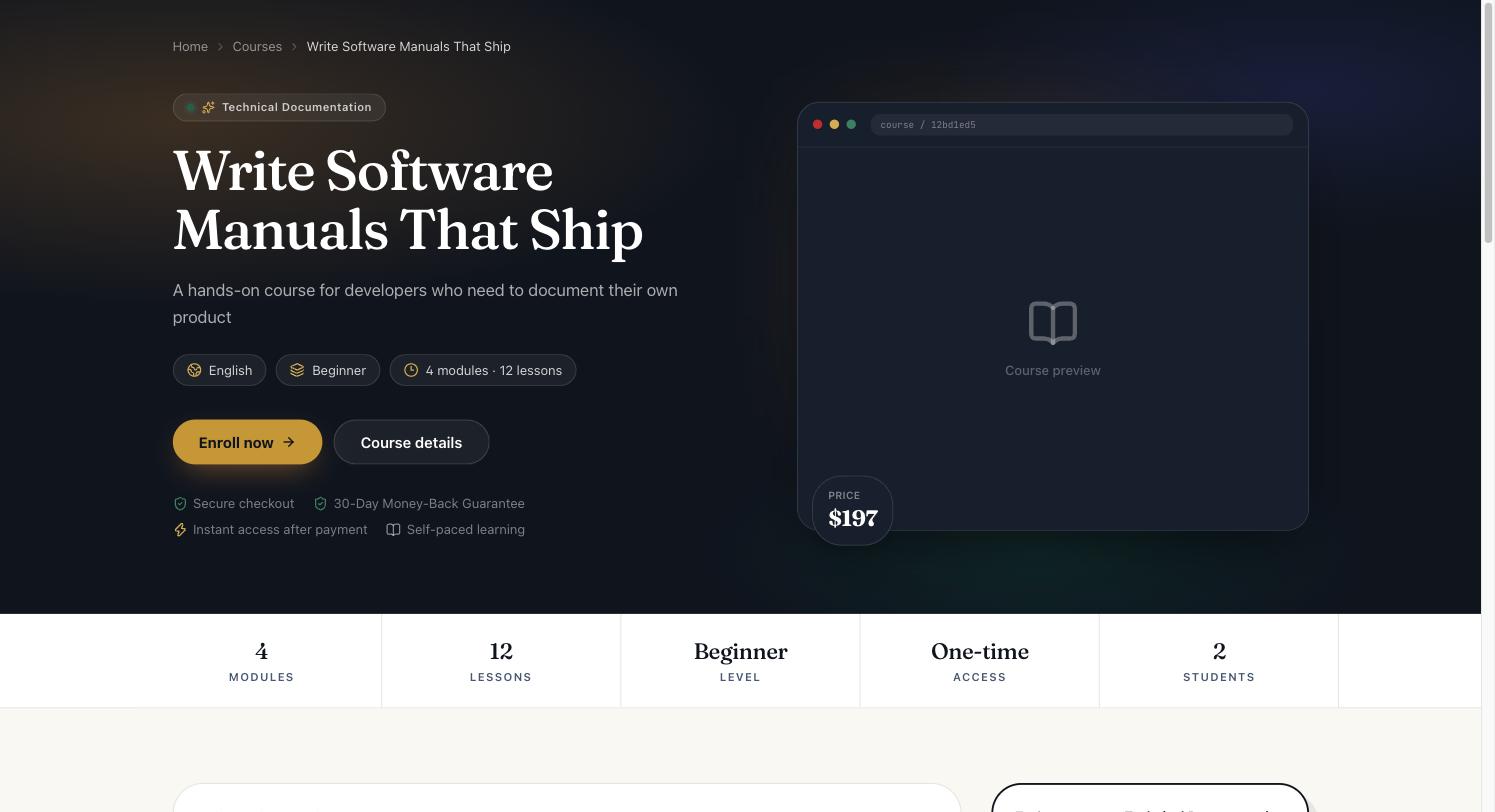
On the checkout panel you can pay by card (Stripe) or, if the instructor has enabled it, PayPal — both are shown side by side. If you have a coupon code, expand I have a coupon, enter it, and click Apply to preview the discounted total before paying; unapplied codes are never charged.
You do not need to create an account first. Paid checkout works as a guest: enter your email on the payment form, pay, and an account is created for you automatically using that email address.
2. After You Buy
Right after payment you land on a confirmation page confirming your purchase succeeded and that your content is ready immediately — no waiting period in the normal case.
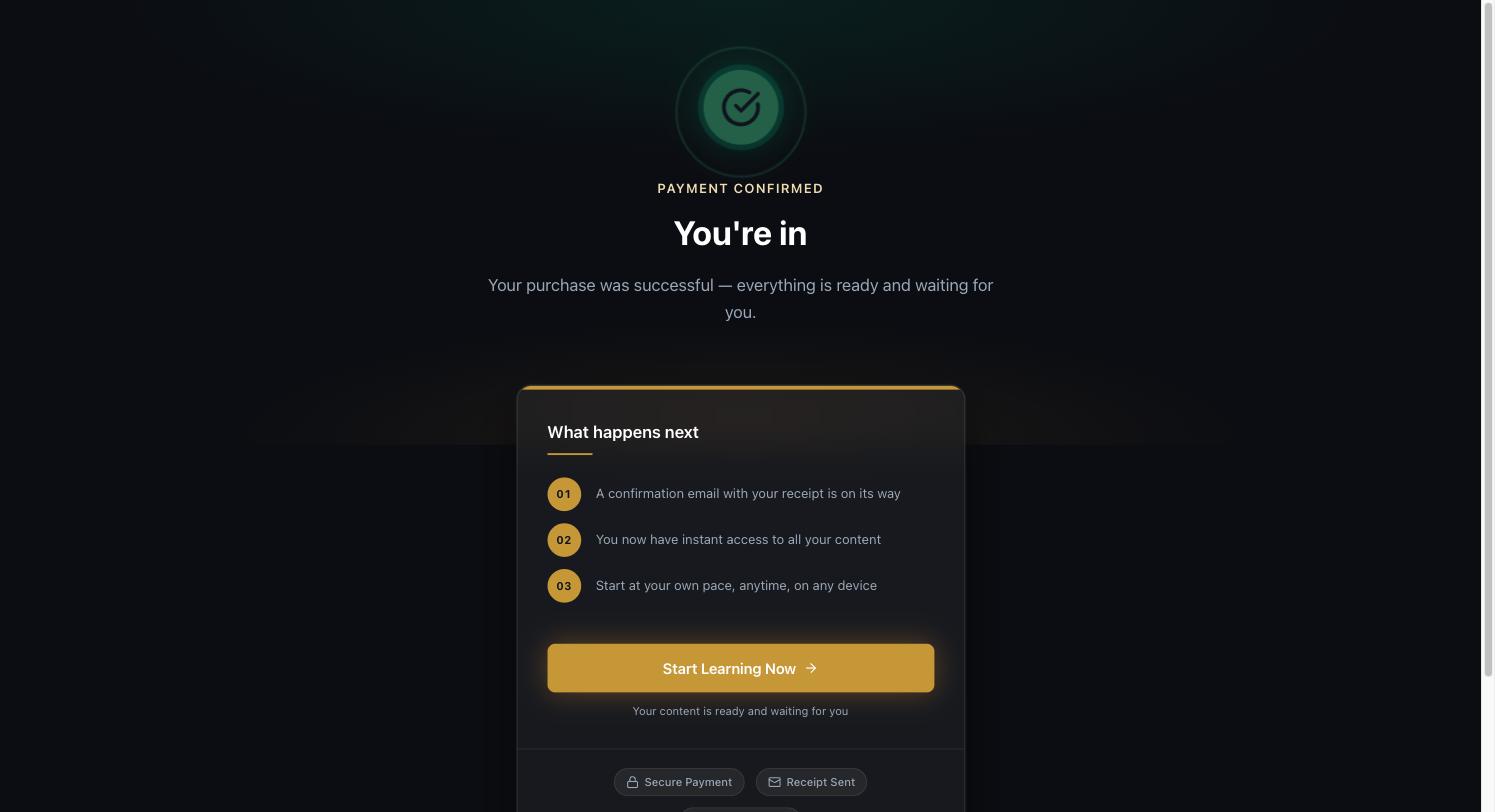
A receipt/confirmation email is sent to the address you paid with. If you bought as a guest, keep an eye out for a second email too: a one-time "claim your account" link that lets you set a password for the account that was created for you.
3. Signing In & Your Account
You can sign back in three ways, all from the same sign-in page:
- Email + password — if you set a password via the claim-account email, or registered directly.
- Email sign-in link — a magic link sent to your inbox, no password needed.
- Google — if the instructor has enabled Google sign-in.
New accounts must verify their email before password sign-in works. If you see "Please verify your email — we've sent you a new verification link," check your inbox (and spam folder) for that link. This applies even to accounts created automatically from a purchase.
4. My Learning Dashboard
Once signed in, My Learning is your home base — it's what "Continue Learning" and the TeachCopilot logo both take you back to. It shows:
- A Continue Learning shortcut straight into whichever course you left off most recently.
- At-a-glance stats: how many courses you're enrolled in, lessons completed, and a learning streak.
- Every course you've bought, with its own progress bar, plus an Expiring Soon badge if a course's access window is running out.
- A separate "Saved resources" section listing every digital product you own, linking straight to its library page.
- If a purchase is still being finalized (see §13), a banner explaining that here instead of a course card.
5. Course Workspace
Opening a course from your dashboard takes you to its workspace: a progress ring, a visual "learning path" of modules, the full curriculum with a lock icon on anything not yet available, and a description of the course underneath.
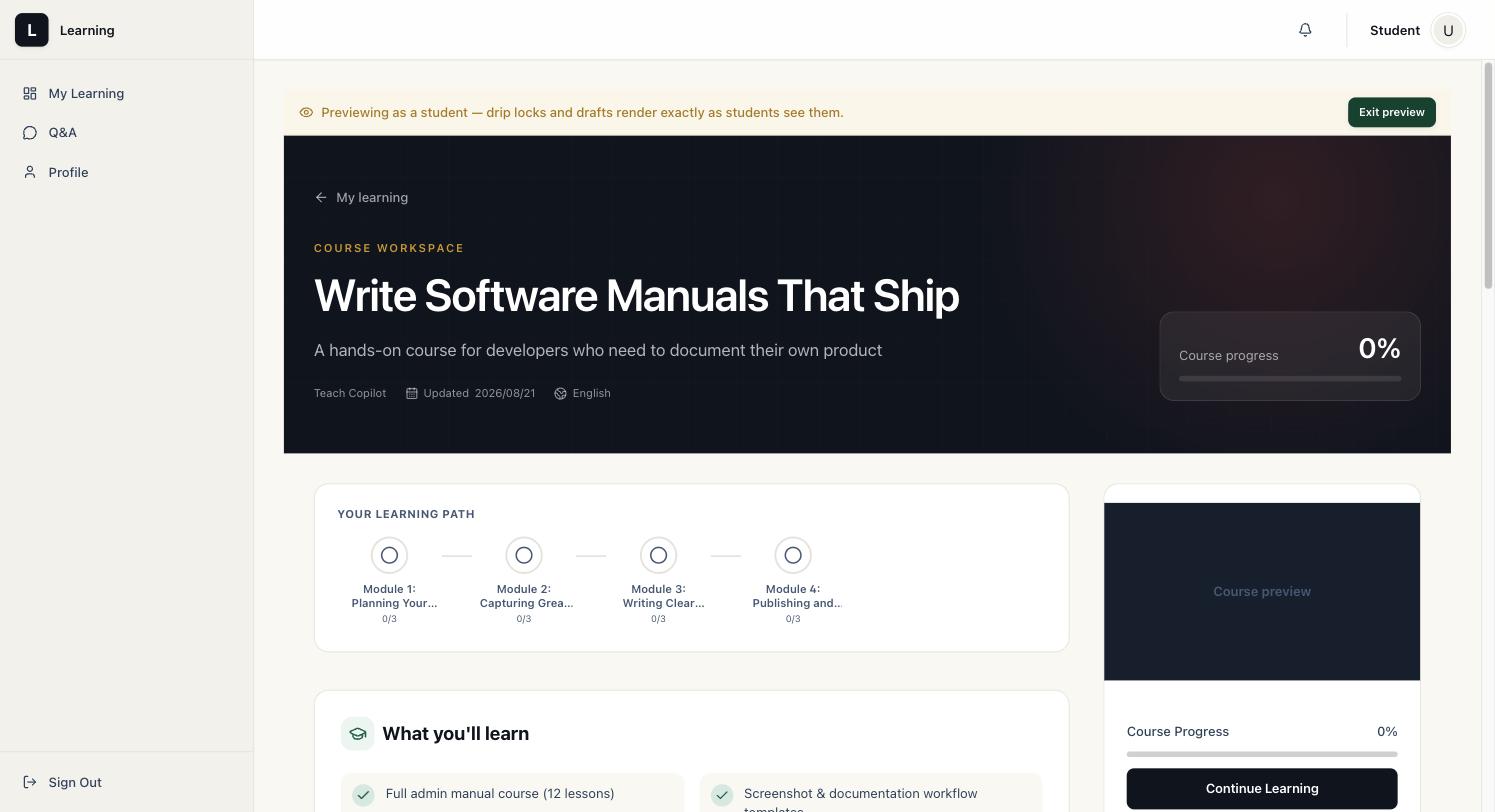
As you complete lessons, the progress ring, the learning path icons, and the per-module lesson counts all update together:
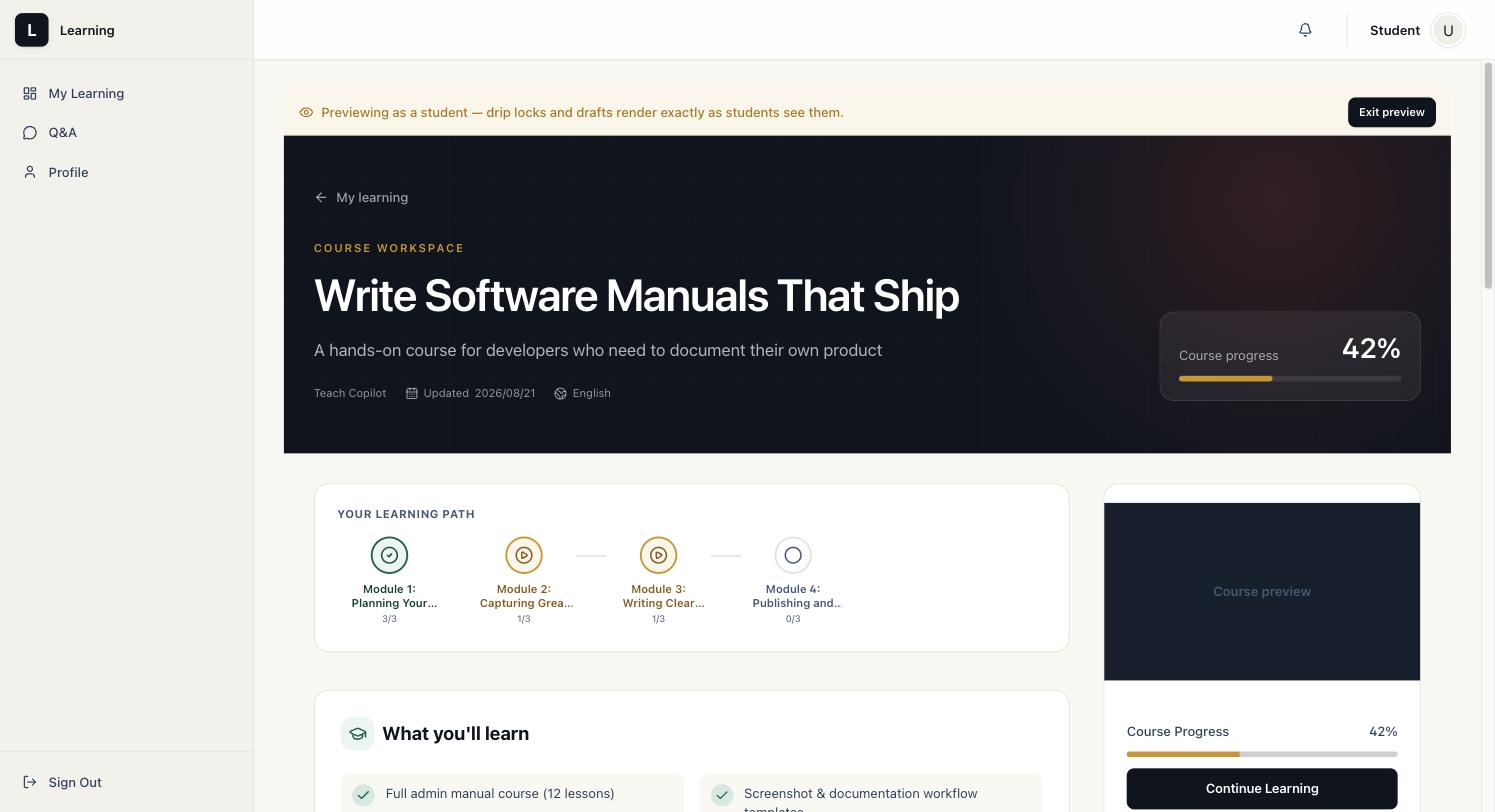
Continue Learning on this page always jumps to the next lesson you haven't finished yet, so you never have to hunt for where you left off.
6. Lessons
Each lesson page has three tabs — Materials (the lesson content itself), Attachments (downloadable files, when the instructor has added any), and Q&A (see §7) — plus a course-progress sidebar you can jump around in, and a Next button for moving forward in order.
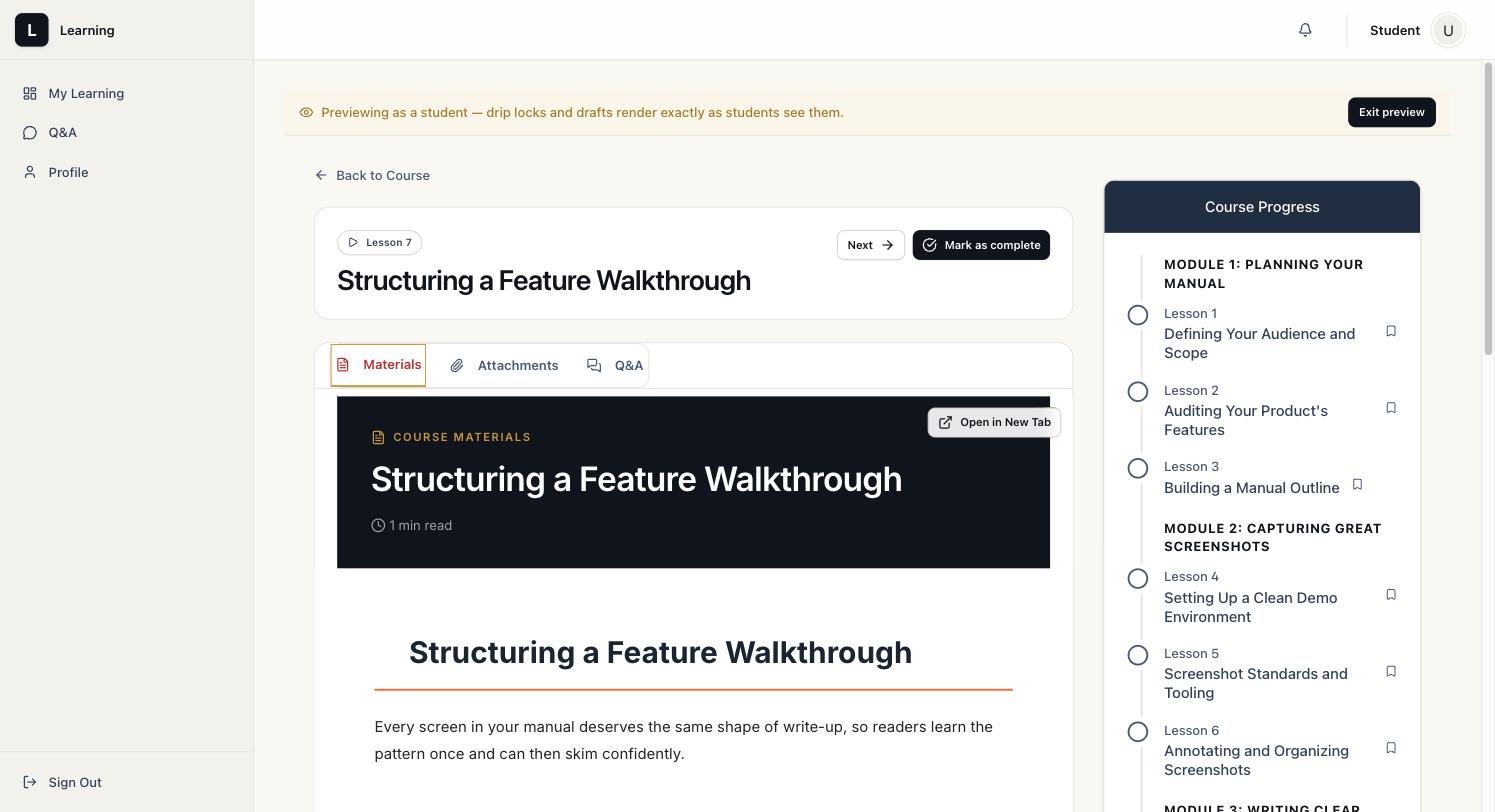
Click Mark as complete when you're done with a lesson — this is what drives your progress bar, your dashboard stats, and eventually your certificate. Some lessons also offer an Ask your AI tutor panel: a chat that answers questions grounded specifically in that lesson's content.
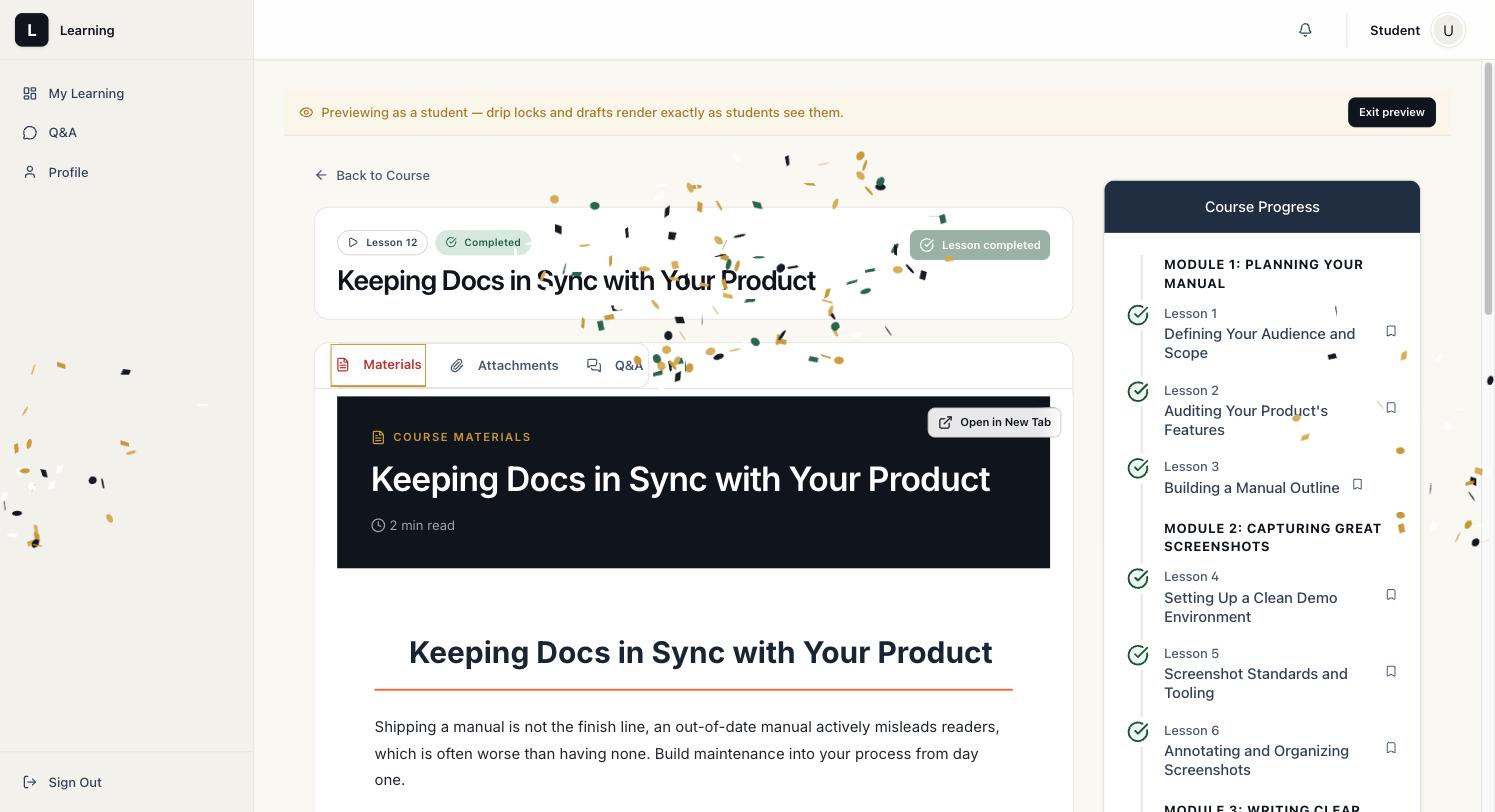
Finishing the very last lesson in a course triggers a small celebration:
7. Questions & Answers
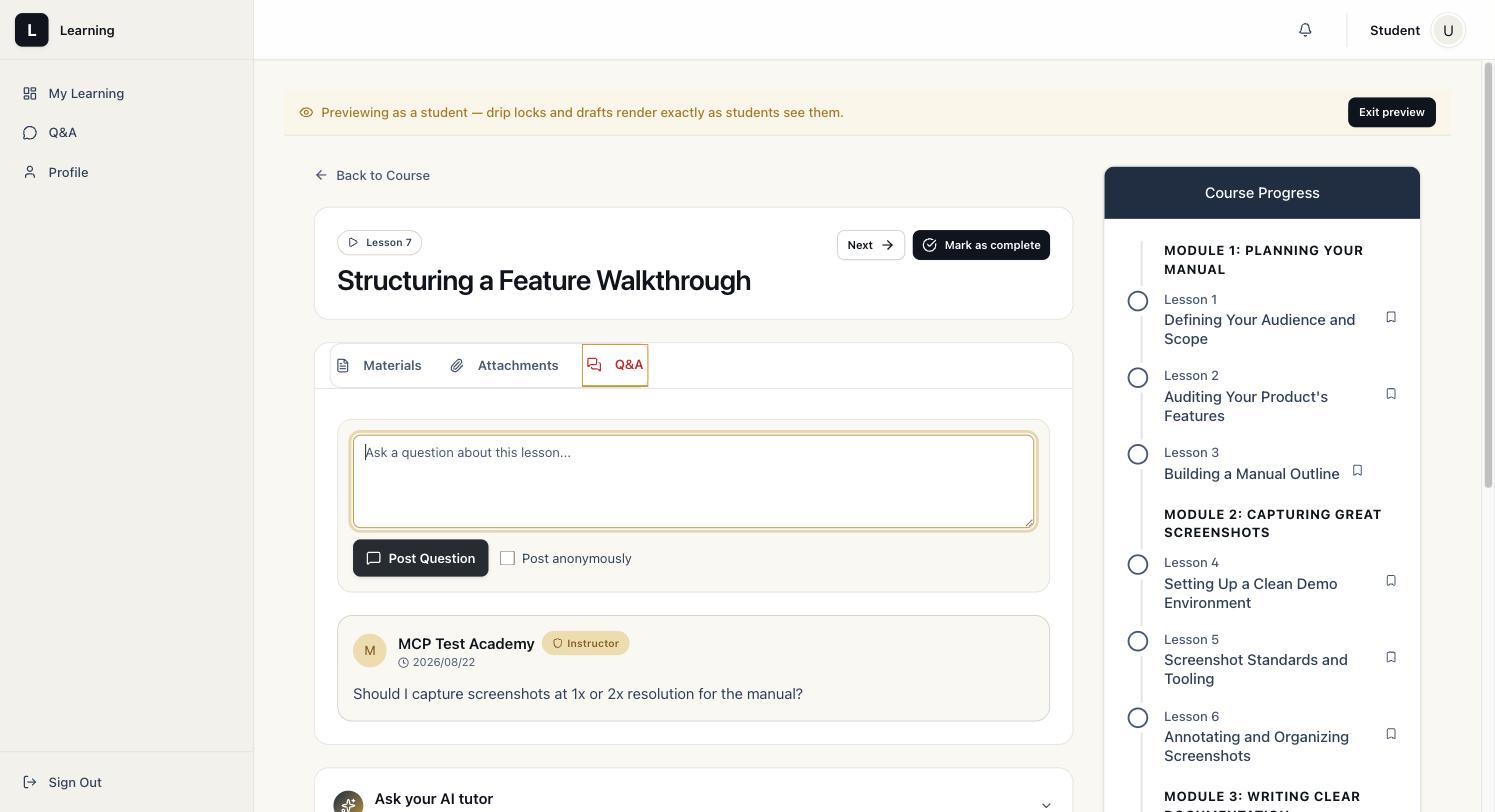
Every lesson has its own Q&A thread — ask a question about that specific lesson (optionally anonymously), and the instructor can reply directly underneath it.
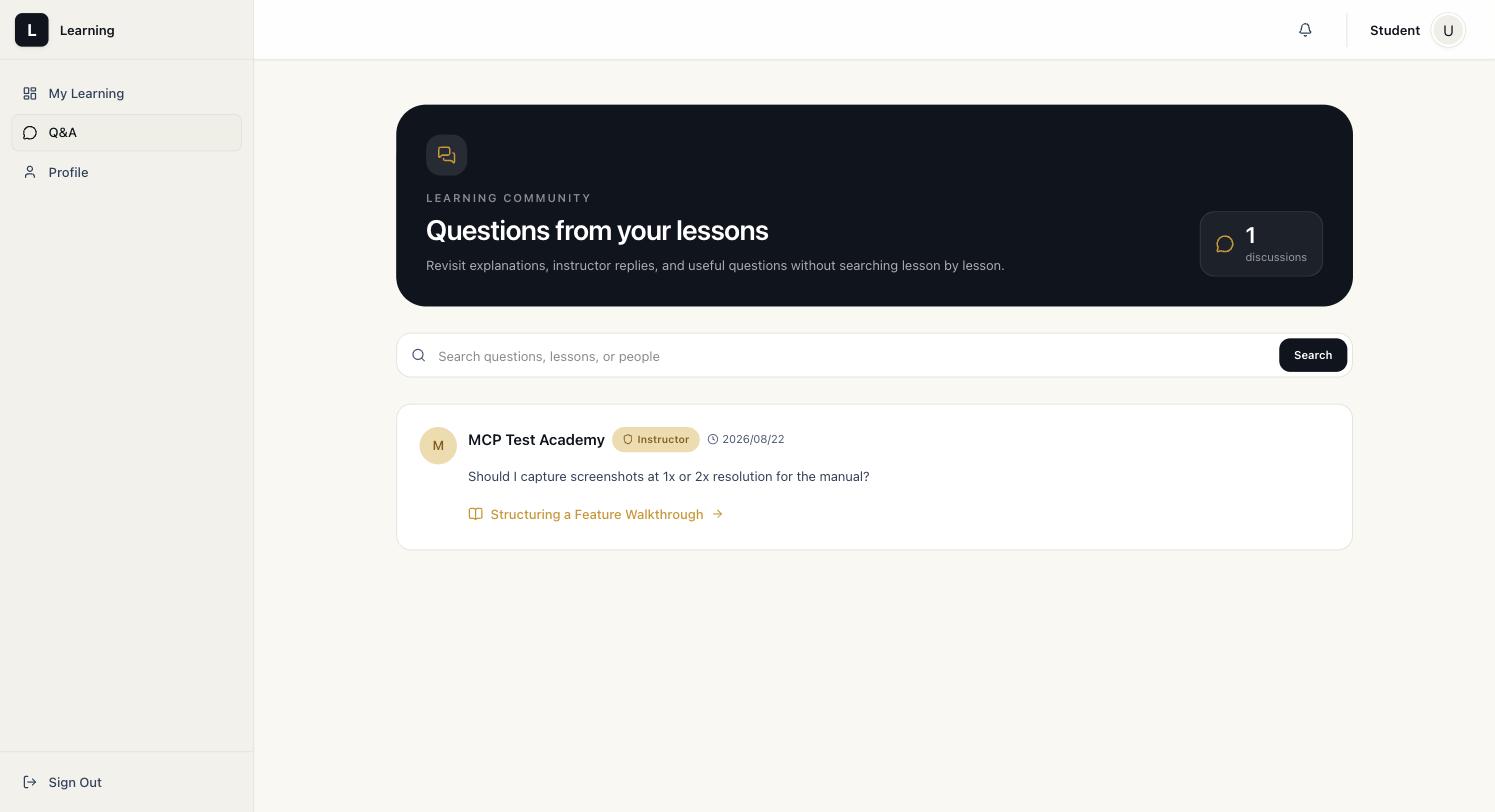
If you're enrolled in more than one course, the Q&A item in the left sidebar is a separate, cross-course feed — a single place to revisit every question and instructor reply from every course you're taking, without having to remember which lesson it was posted on.
8. Certificate of Completion
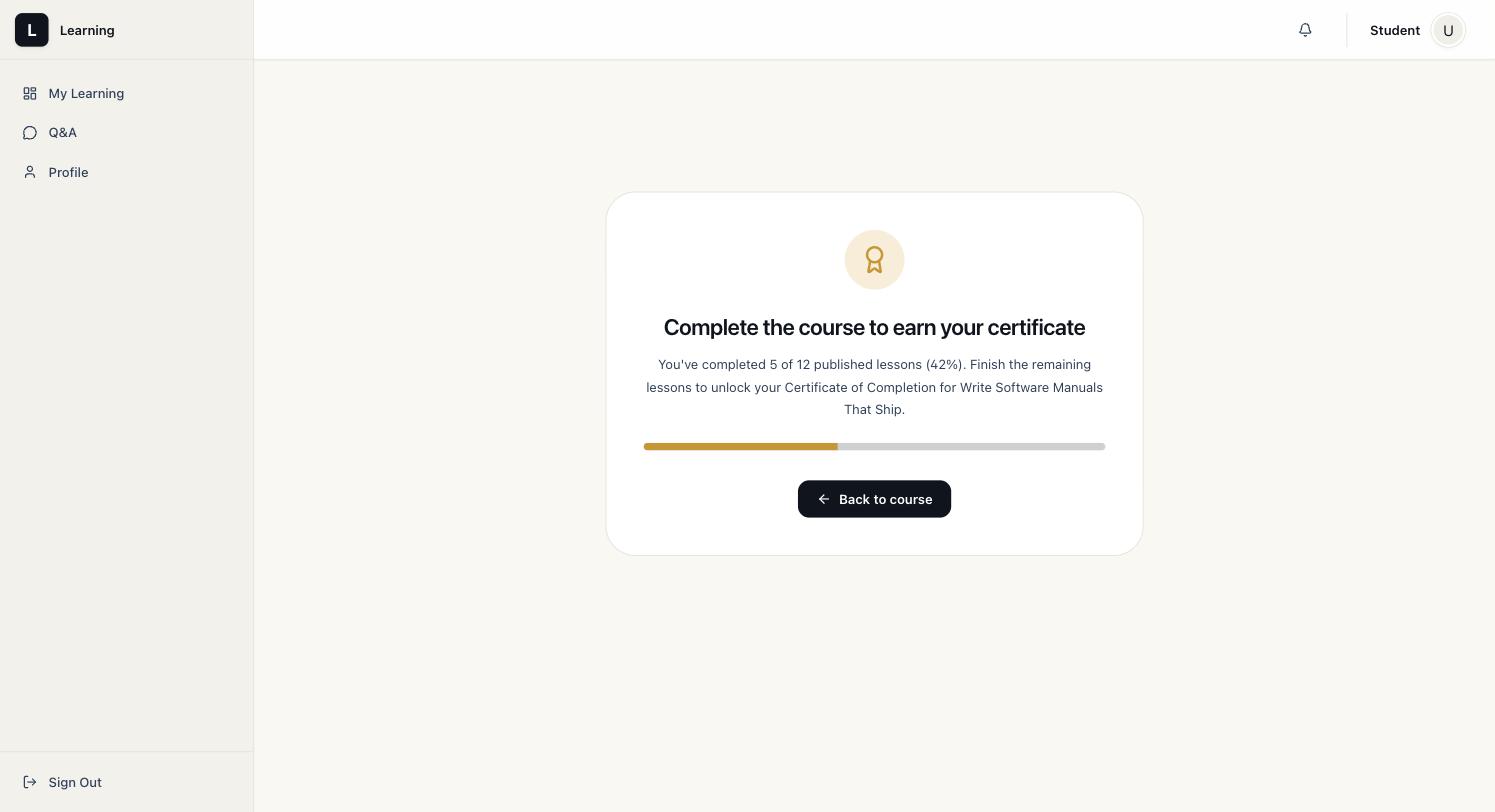
Every course has a certificate page. Before you've finished enough of the published lessons, it shows your current progress and what's left instead of a certificate:
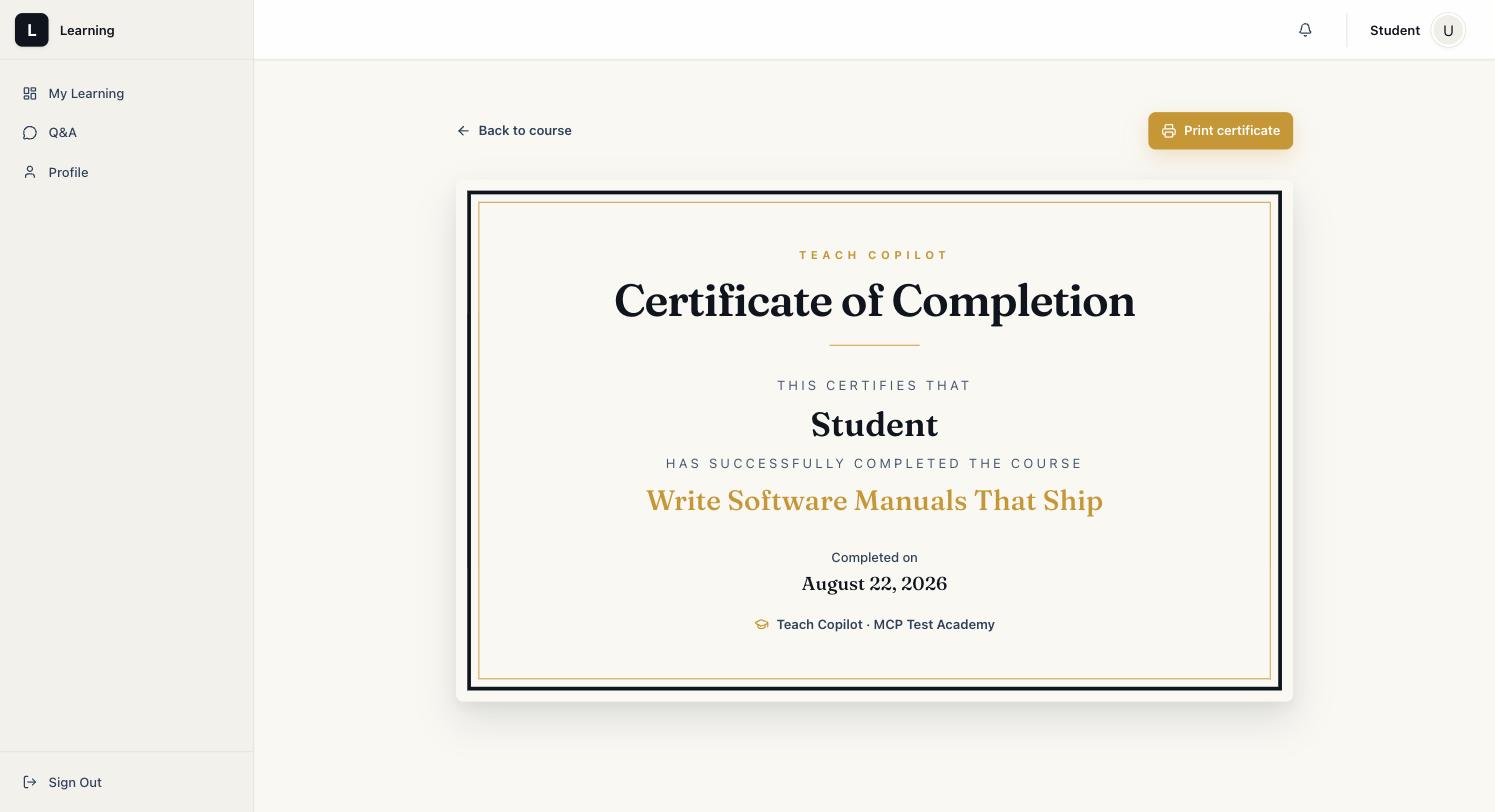
Once you've completed the course, the same page shows a real Certificate of Completion with your name, the course title, and the date, plus a Print certificate button for saving it as a PDF or printing it directly.
9. Your Digital Library
Digital products (as opposed to courses) don't have lessons — instead, each one has its own library page listing every file included in the purchase, each with its own Download button. Some file types (like PDFs) can also be viewed inline without downloading first.
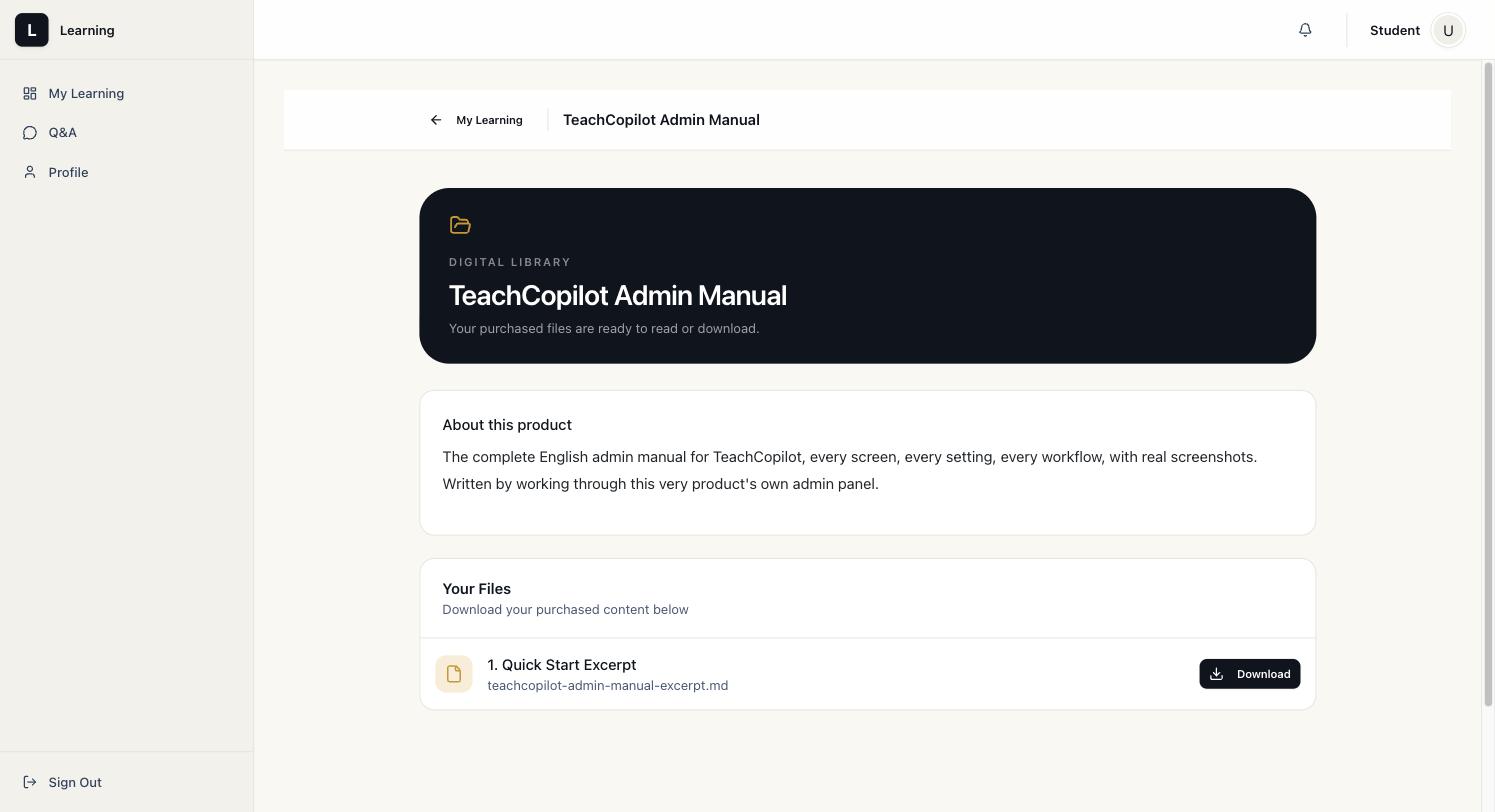
Your dashboard's "Saved resources" section links directly here for every digital product you own.
10. Profile & Password
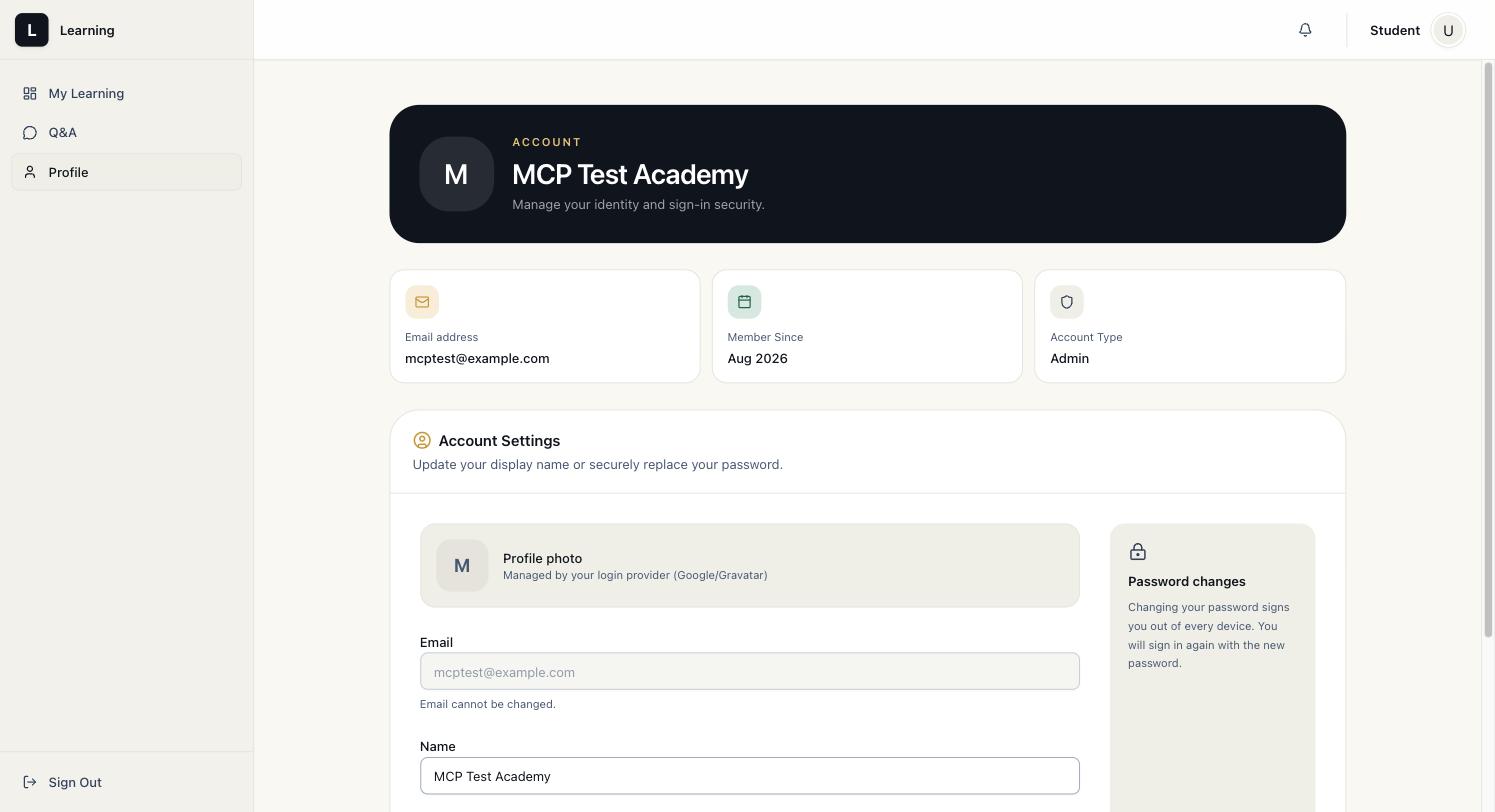
Your profile page shows your email (fixed — it can't be changed here), member-since date, and account type, plus a form to update your display name. (The screenshot below was captured from an admin account previewing this page, which is why it shows "Admin" — a student's own profile looks identical except that field reads "Student".)
Changing your password signs you out everywhere. Setting a new password immediately signs you out of every device, including the one you're on — you'll need to sign back in right after with the new password. This is intentional: it's what makes a password change actually secure if the old one leaked.
11. Locked & Coming Soon Lessons
Two different lock icons show up in a course's curriculum, and they mean different things:
| What you see | What it means |
|---|---|
| Lock icon, "Available [date]" | Drip content — the instructor scheduled this section to unlock later, either on a fixed calendar date or a set number of days after you enrolled. It will open on its own; nothing to do but wait. |
| "Coming Soon" label | The lesson exists but the instructor hasn't published it yet. This is a normal, intentional state — it just means that lesson isn't ready. |
A course can also offer one or two free preview lessons to non-enrolled visitors, marked as trial content — anyone can watch those without buying, as a taste of the full course.
12. Access Expiration & Renewal
Some courses grant access for a limited time (set by the instructor) rather than forever. The countdown starts the first time you actually open the course, not the moment you pay — so a course sitting unopened in your dashboard isn't quietly expiring in the background.
As the deadline approaches, an Expiring Soon badge appears on that course's card on your dashboard. If access does lapse before you finish, opening the course shows an Access Expired screen with the expiration date and renewal buttons for whichever payment methods the instructor has enabled (card, PayPal, or bank transfer) — renewing takes you straight back into the same course with your existing progress intact, no need to re-enroll from scratch or contact anyone.
13. "Still Finalizing Your Access"
Occasionally you'll open a course you just paid for and see a message that your access is still being finalized. This happens on the rare occasion when the payment succeeded a moment before the platform's own record of it caught up. It typically resolves within a few minutes — refreshing the page or your dashboard usually clears it. If it doesn't clear after a while, that's the moment to reach out to the instructor with your order/receipt details.